
Spatial Manager · CAD and GIS
Stop redrawing site boundaries from KML and shapefiles.
Spatial Manager adds GIS import and export to AutoCAD, BricsCAD, ZWCAD and GstarCAD. Load a KML or shapefile into your drawing, transform it to your coordinate system, and send drawing data back out with its attribute tables. A standalone Windows version is available if you use none of those.
One-time license. First year of updates and support included. Windows only.


Current release
Version 10
New builds every 3 to 4 months
License
One-time
First year of updates and support included
Compatibility
AutoCAD 2013 to 2027
Also BricsCAD, ZWCAD and GstarCAD
Platform
Windows
Plug-ins and a standalone app
Why not just redraw it?
Tracing a boundary from a screenshot or a PDF takes time, and it rarely lands exactly. Importing the source file does.
Traced by eye
The edges drift, and the attribute data stays behind in the other file.
Imported from the source file
Exact vertices, in the right coordinate system, with the attribute data attached.
What it does on a real project
These are the tasks Spatial Manager takes over inside your CAD drawing.
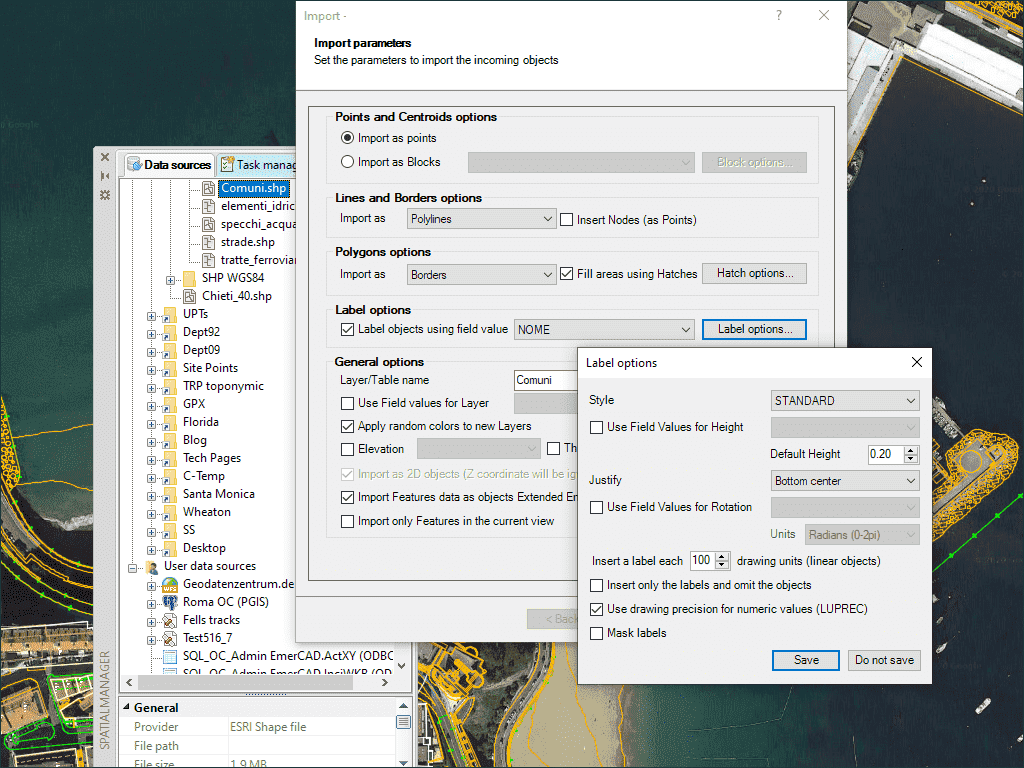
Bring survey and GIS files into the drawing
Load shapefiles, KML, GPX, CSV point files and LiDAR into a new or existing drawing. Objects arrive as real CAD objects with their attribute data attached.
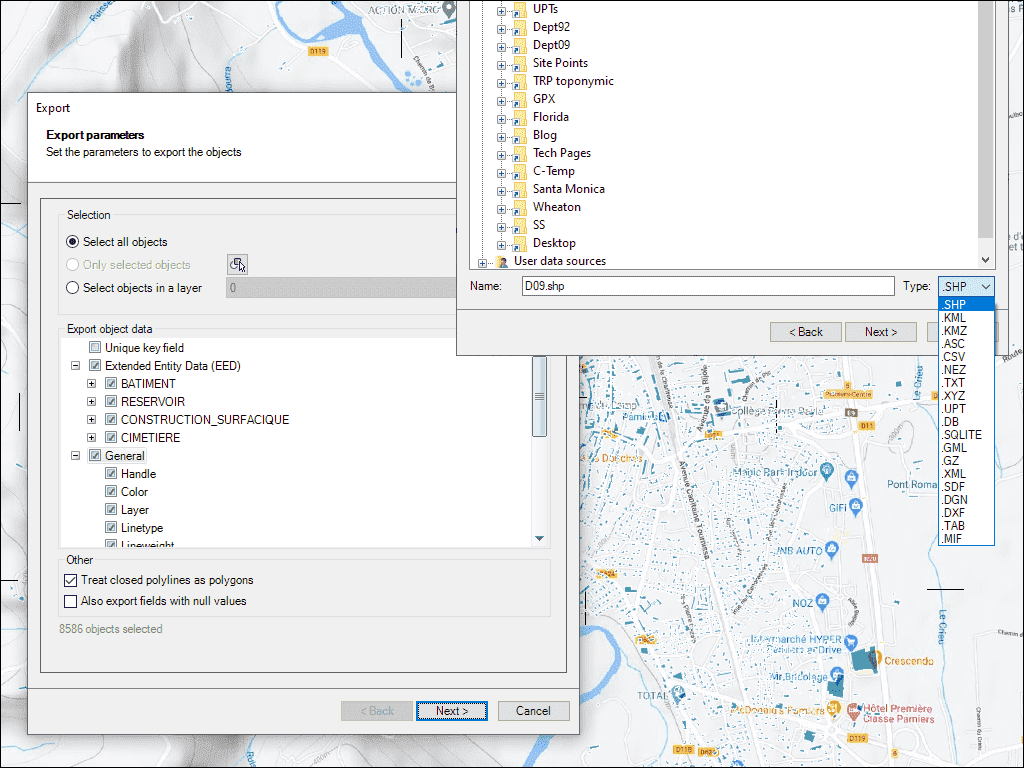
Send drawing data back out
Export objects to a shapefile, KML or a spatial database. The attribute tables go with them, so the GIS team gets the data as well as the shapes.
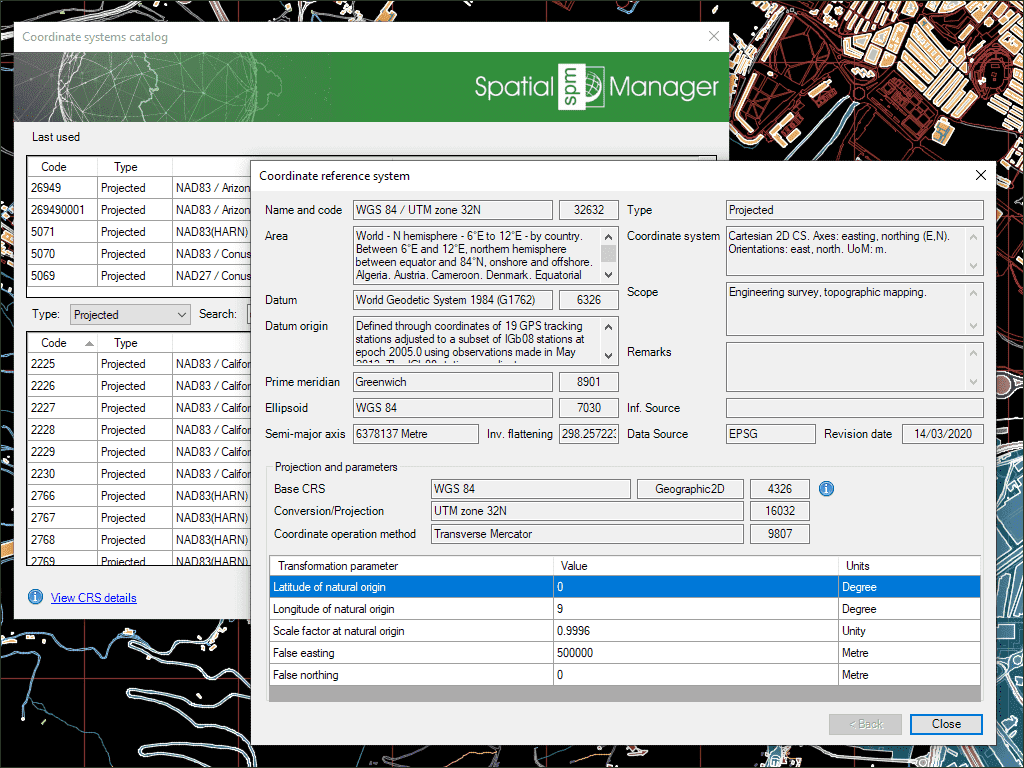
Put files on the right coordinate system
Transform coordinates while you import or export, so a drawing and a GIS layer that use different systems land in the same place.
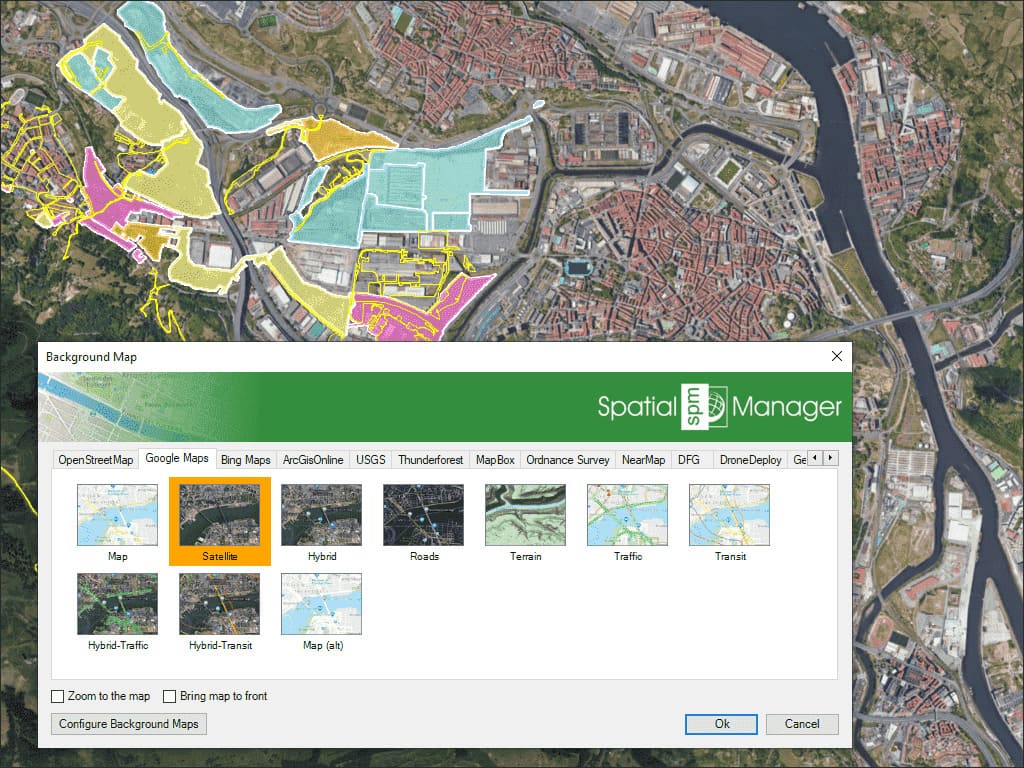
See the site behind your linework
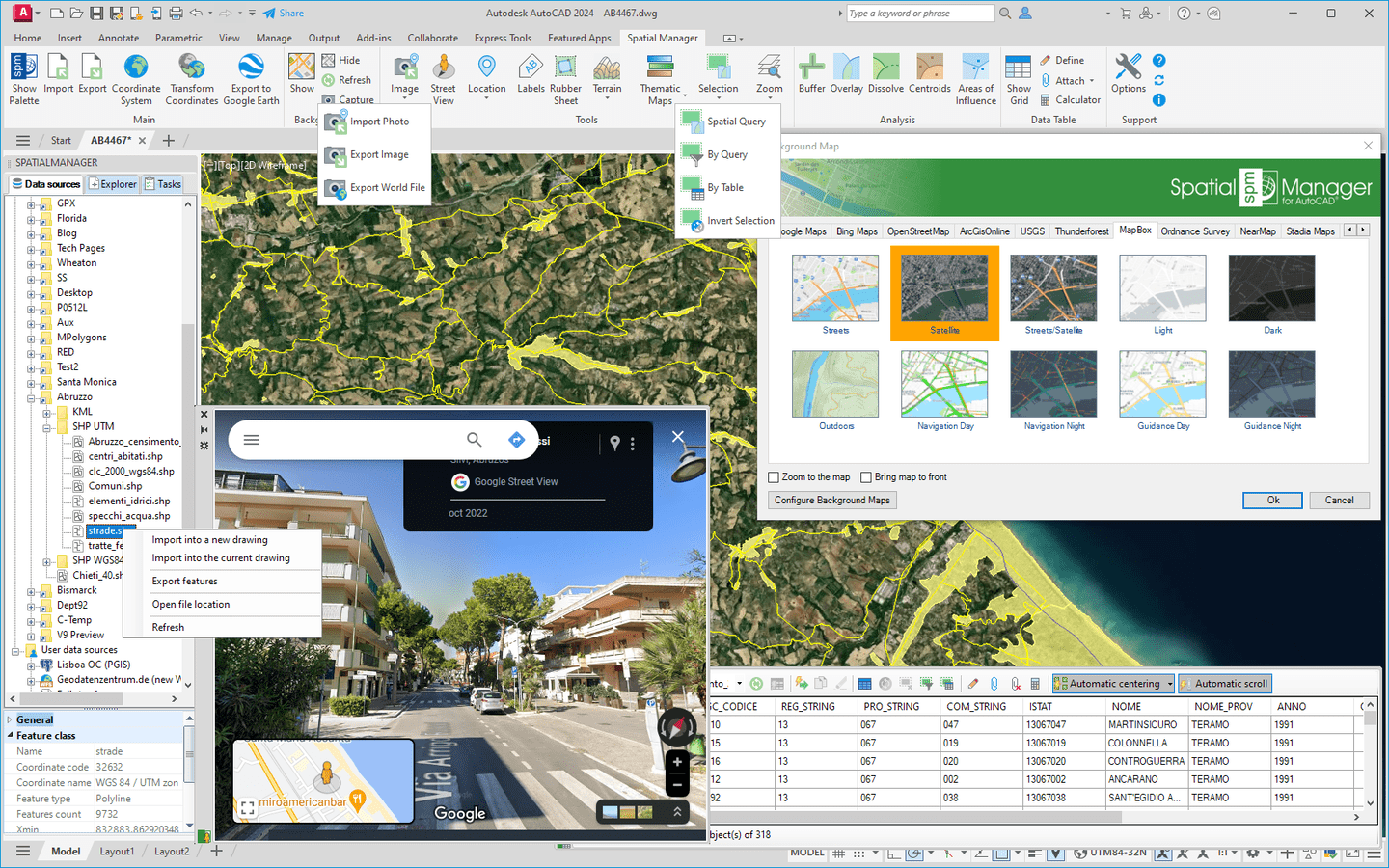
Show Google Maps, OpenStreetMap, Bing, MapBox or Ordnance Survey maps behind the drawing, or connect your own WMS, WMTS or tile server. Street View opens on any georeferenced drawing.
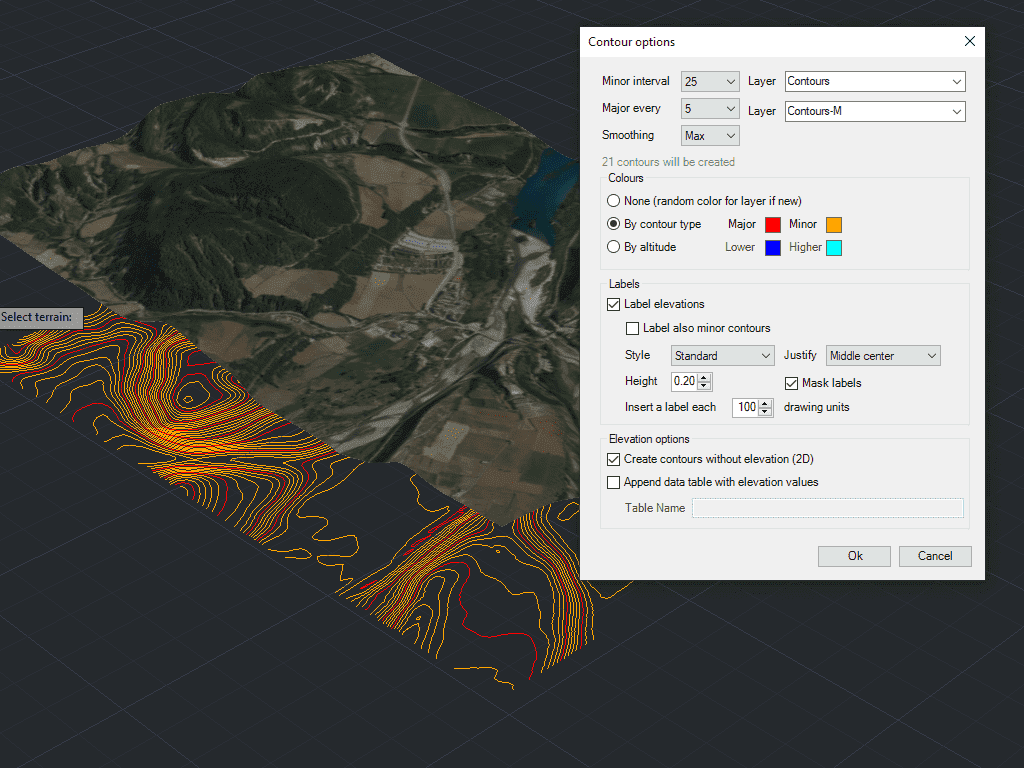
Build terrain and contours
Create terrain models, 3D points and contours from 3D data or from an elevation service.
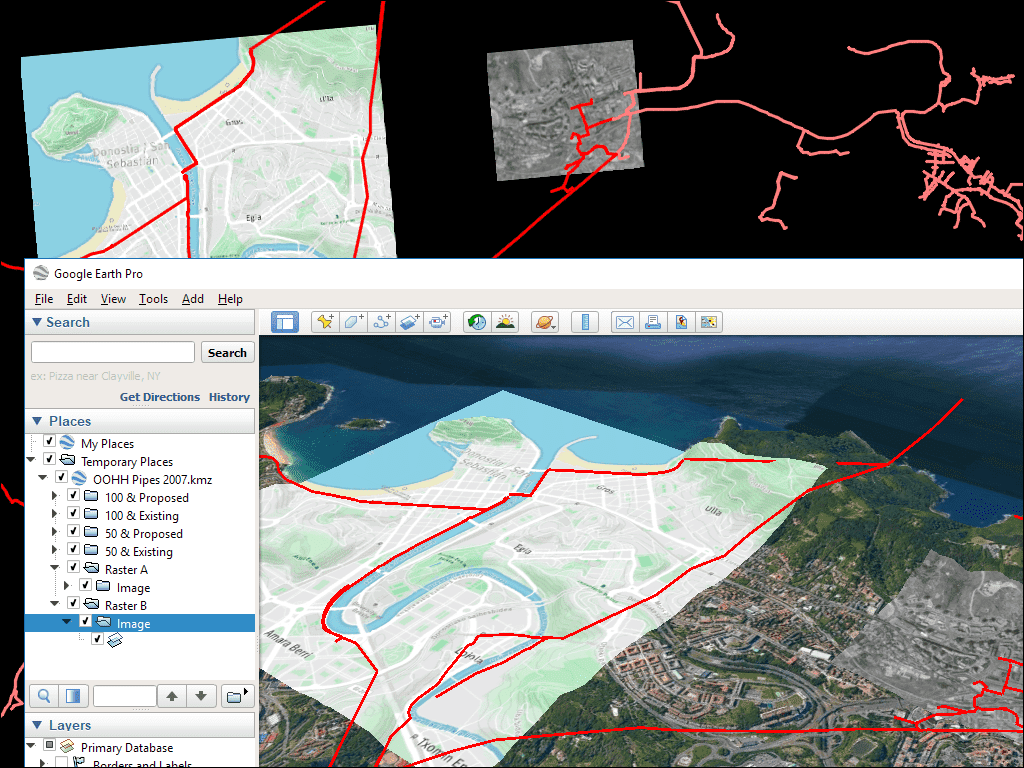
Share a drawing as KML or KMZ
Publish the visible layers and their data to a KML or KMZ file, so clients and colleagues can open it in Google Earth.
Also included: a data grid, a fields calculator and thematic maps. Version 10 adds geometry tools and map books for multi-page plans.
In the software
Screens from the AutoCAD version, so you know what you are getting.
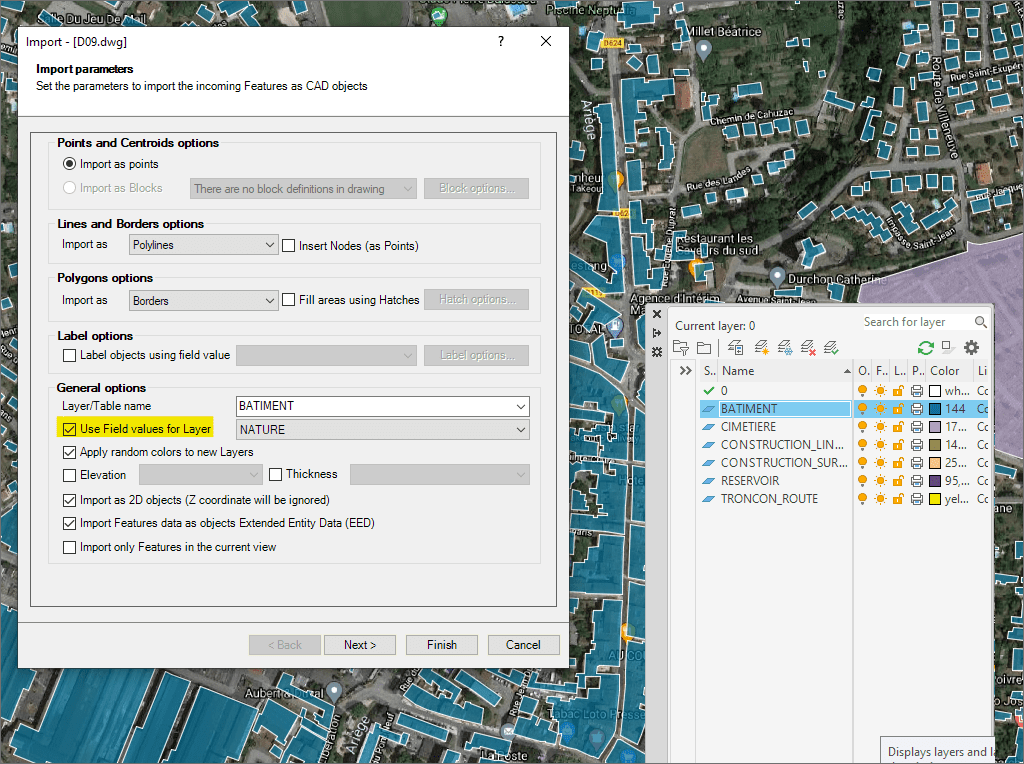
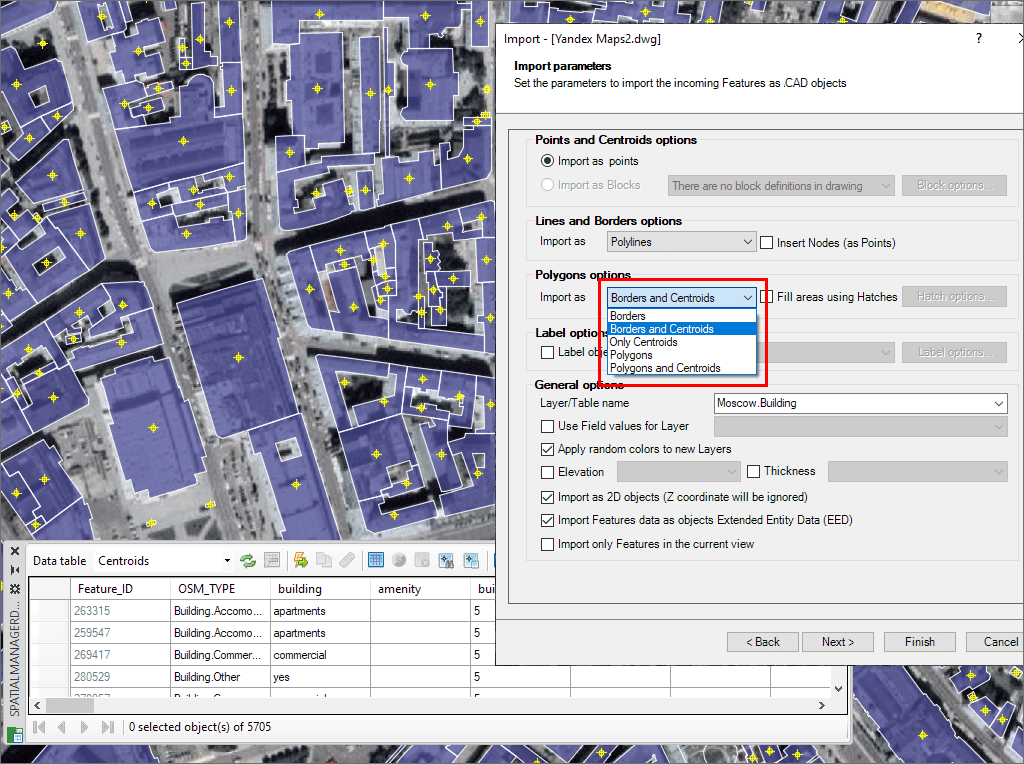
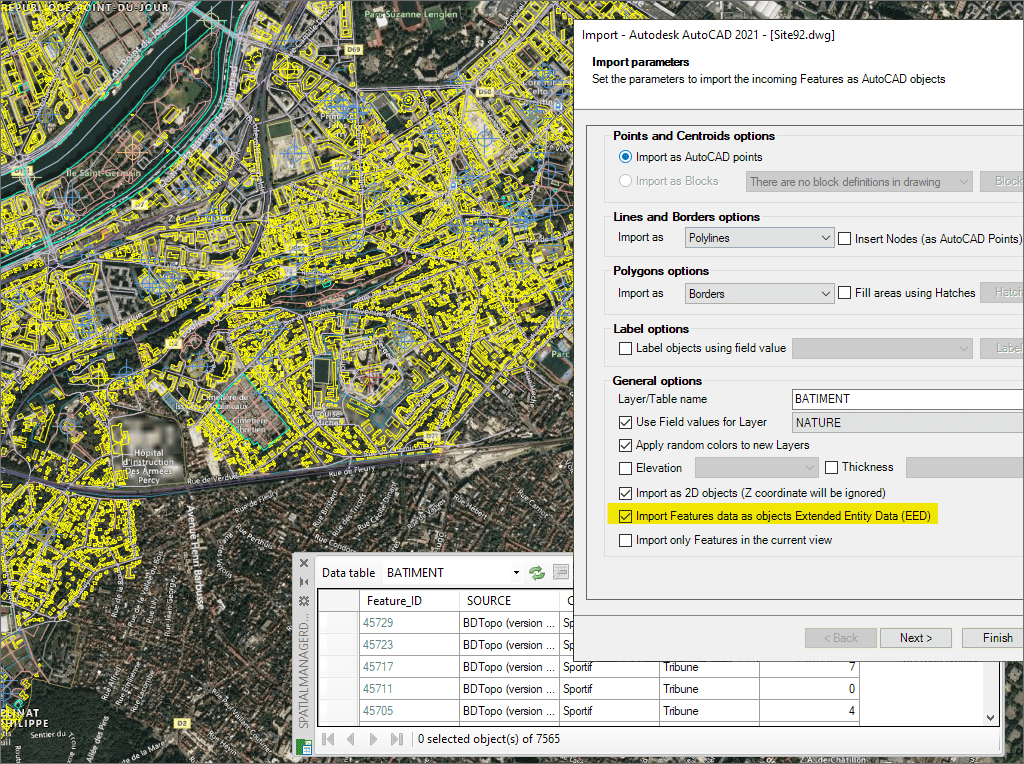
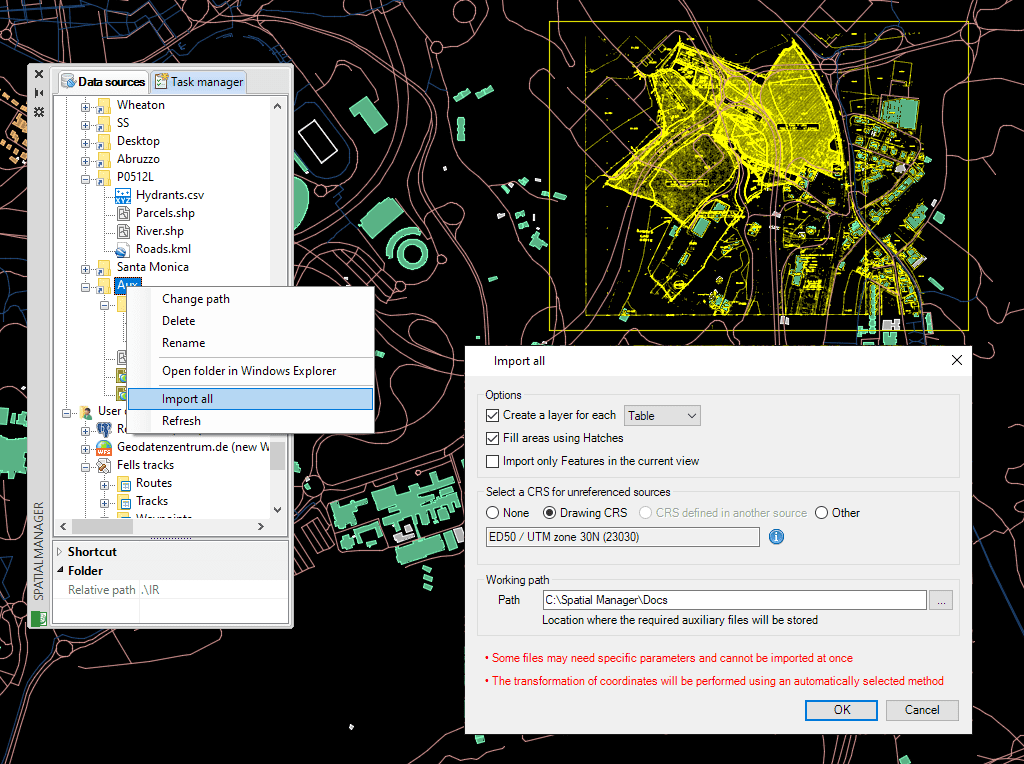
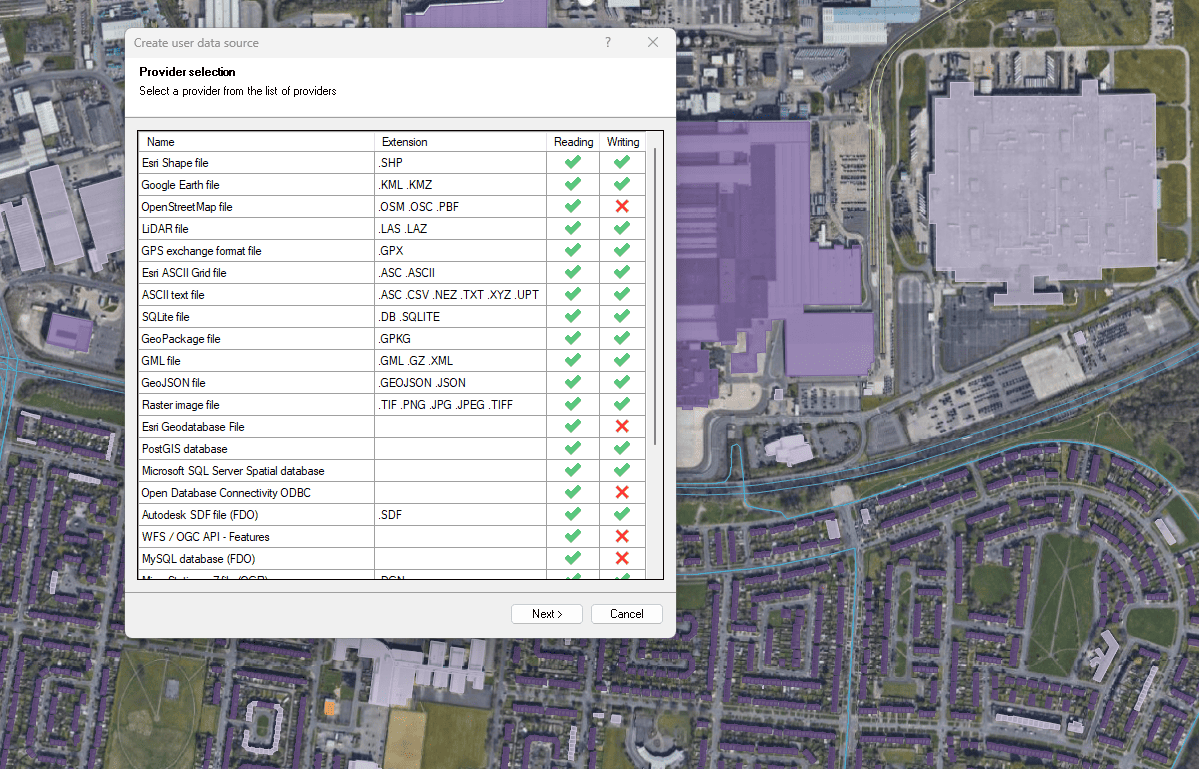
Images: Opencartis.
Where it fits in your workflow
Typical jobs, by role.
Surveyors
Import survey point files (CSV, TXT, XYZ), build a terrain with contours, and export the boundary to KML for the client.
Road and infrastructure design
Put the alignment over a background map, bring in utility shapefiles, and move between survey and design coordinate systems.
GIS and utilities
Attach attribute tables to drawing objects, then export to shapefile, GeoPackage or PostGIS.
Consultants and contractors
Publish the design as KMZ for client review, and print multi-page map books straight from the drawing.
Pick the version for your CAD software
Each Spatial Manager product is licensed separately. A license for AutoCAD does not work in BricsCAD, ZWCAD, GstarCAD or Desktop, and the other way around. You choose your platform in the request form.
Spatial Manager for AutoCAD
- Works with
- AutoCAD, Map 3D, Civil 3D and Architecture
- Versions
- 2013 to 2027
- Note
- Not for AutoCAD LT. Use Desktop with DXF files instead.
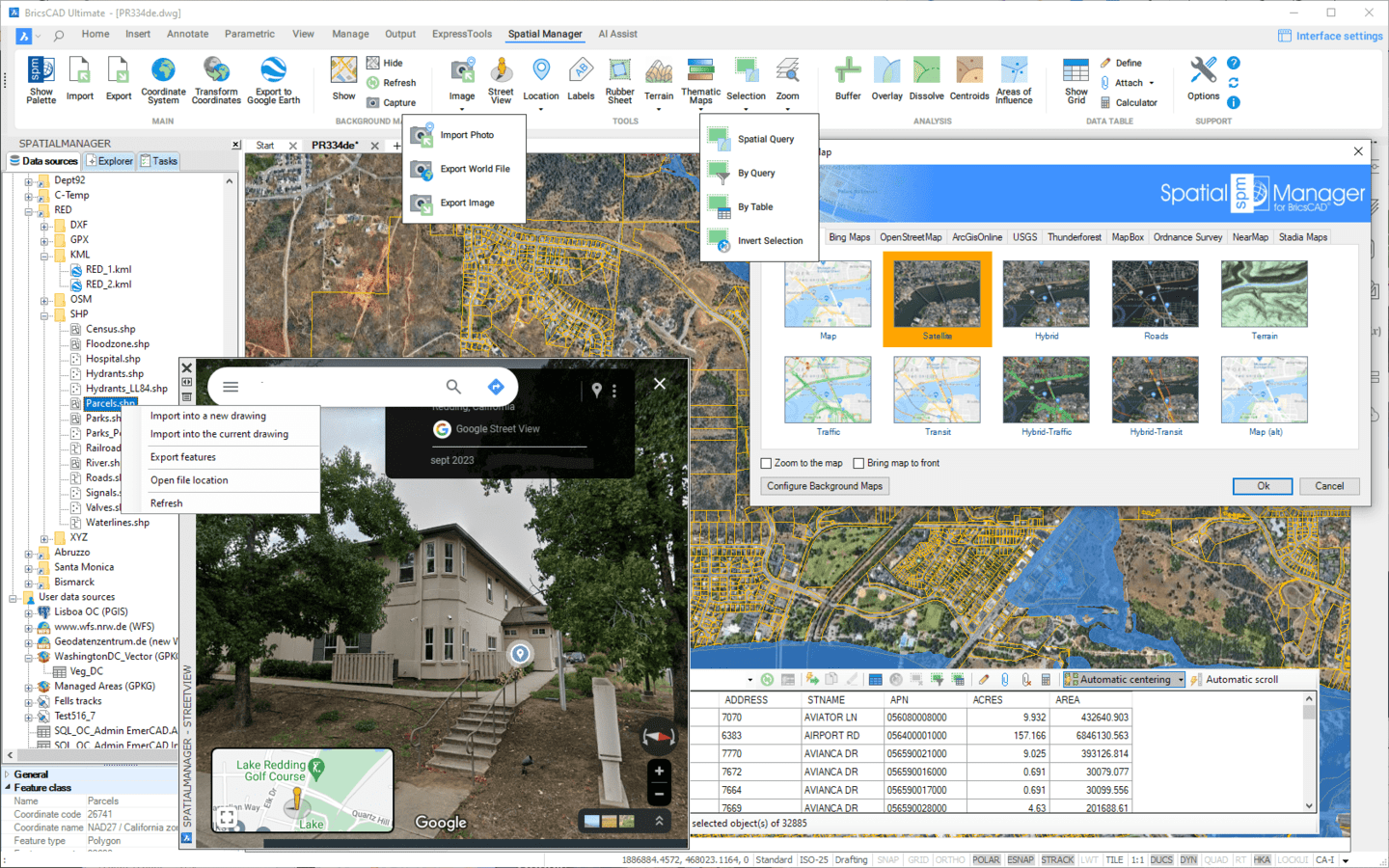
Spatial Manager for BricsCAD
- Works with
- BricsCAD Pro and Platinum
- Versions
- V13 to V27
- Note
- Not for Classic or Lite. Use Desktop with DXF files instead.
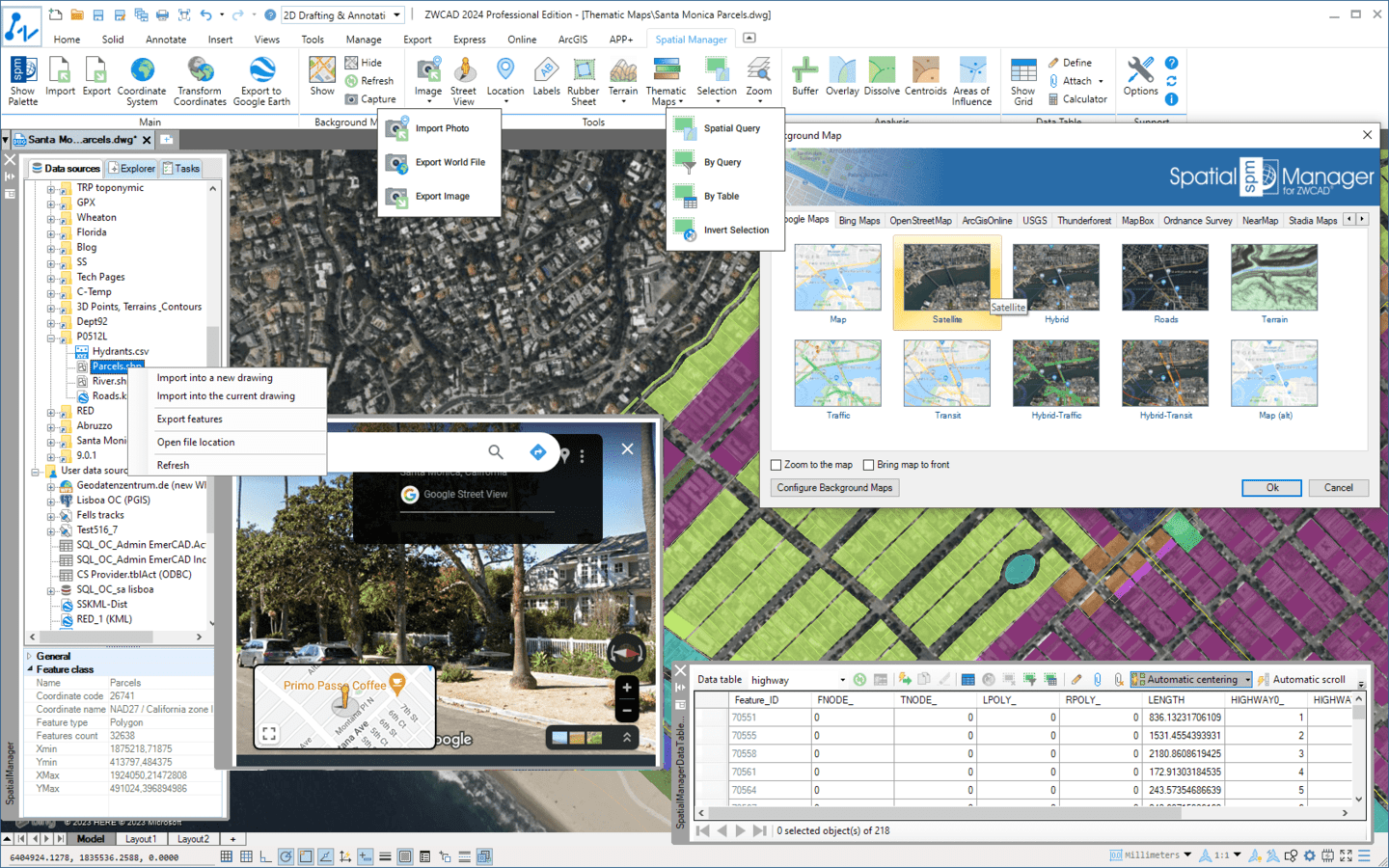
Spatial Manager for ZWCAD
- Works with
- ZWCAD Professional, including Architecture and MFG
- Versions
- 2017 to 2027
- Note
- Not for Classic or Standard. Use Desktop with DXF files instead.
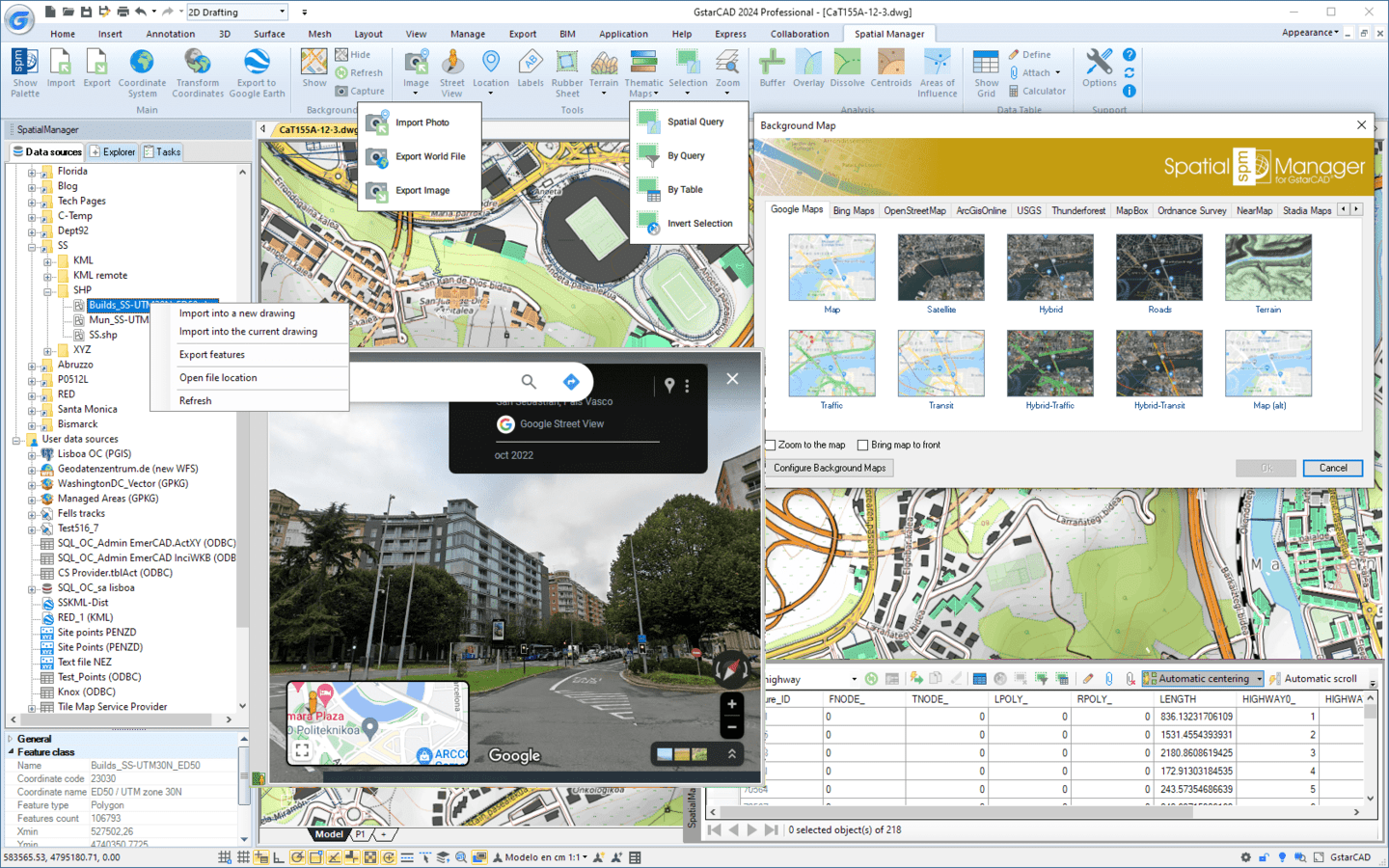
Spatial Manager for GstarCAD
- Works with
- GstarCAD Standard, Professional and Educational
- Versions
- 2018 to 2027
- Note
- Plug-ins run on Windows.
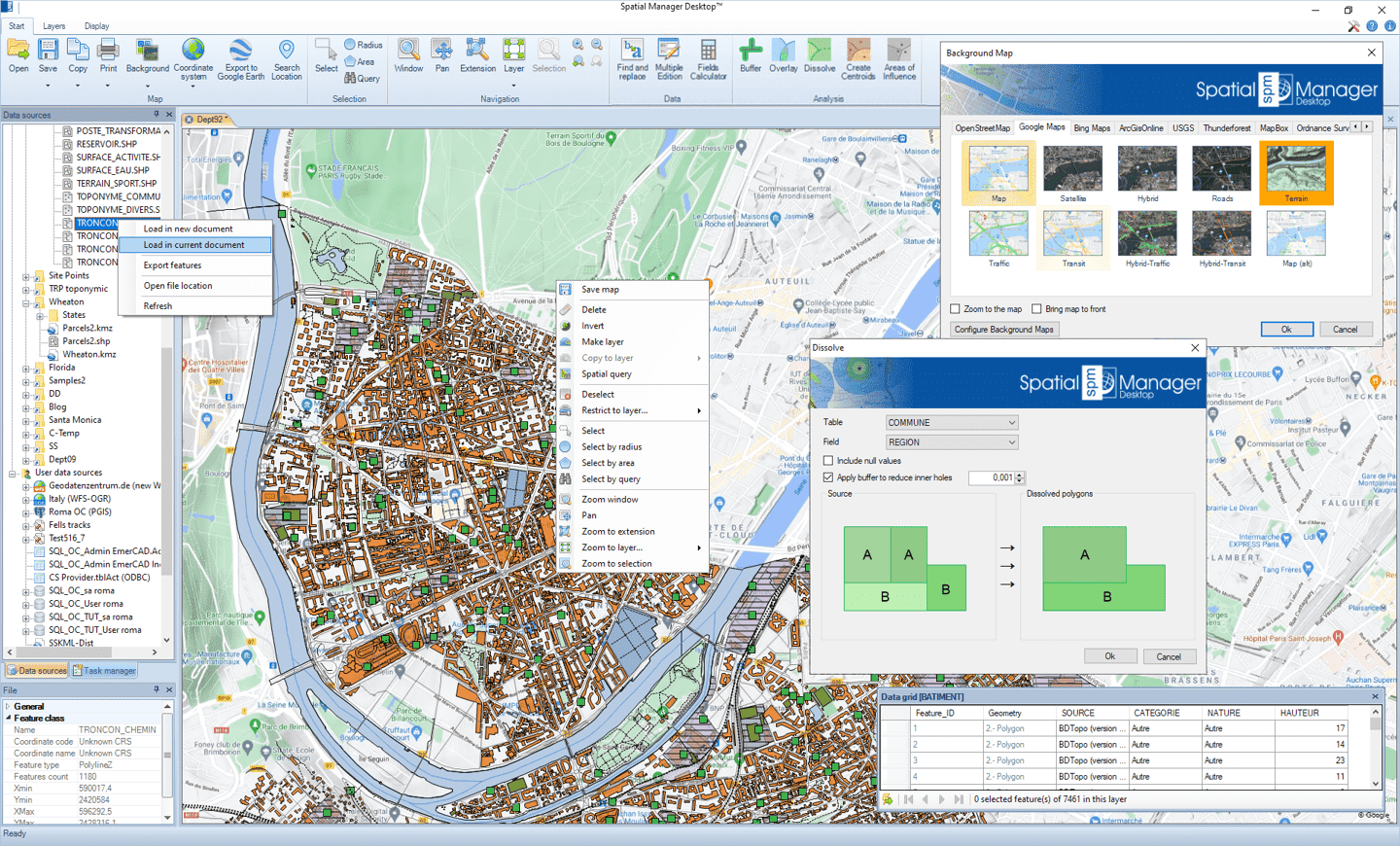
Spatial Manager Desktop
- Works with
- Standalone app, no CAD software needed
- Runs on
- Windows 7 SP1 and later
- Note
- Exchange DXF files if you use AutoCAD LT or a lite CAD edition.
Works with the files your team already sends you
Some formats are read-only and some depend on the edition. We confirm yours before you buy.
Files
Databases
Web services
How to get started
-
Request the free trial
Pick your CAD software in the form. You get the installer for your platform.
-
Test it on a real file
Import a shapefile or KML from a current project. Check that it lands where it should.
-
Request a quote
Tell us the platform, the edition and how many licenses you need.
-
Get your license
One-time payment. The first year of updates and support is included.
Questions engineers ask
Which CAD software does it work with?
AutoCAD (including Map 3D, Civil 3D and Architecture), BricsCAD Pro and Platinum, ZWCAD Professional and GstarCAD. There is also a standalone Desktop app that needs no CAD software.
Does it work with AutoCAD LT?
No. Use Spatial Manager Desktop and exchange DXF files with your LT drawings.
Is it a subscription?
No. It is a one-time license. The first year of updates and support is included, and you can extend it afterwards. Standalone and network licenses are both available.
Can one license cover AutoCAD and BricsCAD?
No. Each product is licensed separately, and a license for one is not valid for the others, including Desktop.
Which edition should I choose?
Basic, Standard and Professional are all one-time licenses. Professional includes the newest version 10 enhancements, and some data formats are limited to certain editions. Tell us what you work with and we will recommend one.
Which languages does it support?
The interface is available in English, German, Spanish, French and Portuguese.
How often is it updated?
New versions come out every three to four months.
Can I try it before I buy?
Yes. Request the free trial and choose your CAD software in the form.
Test it on one of your own files.
Test Spatial Manager on one of your own files.